
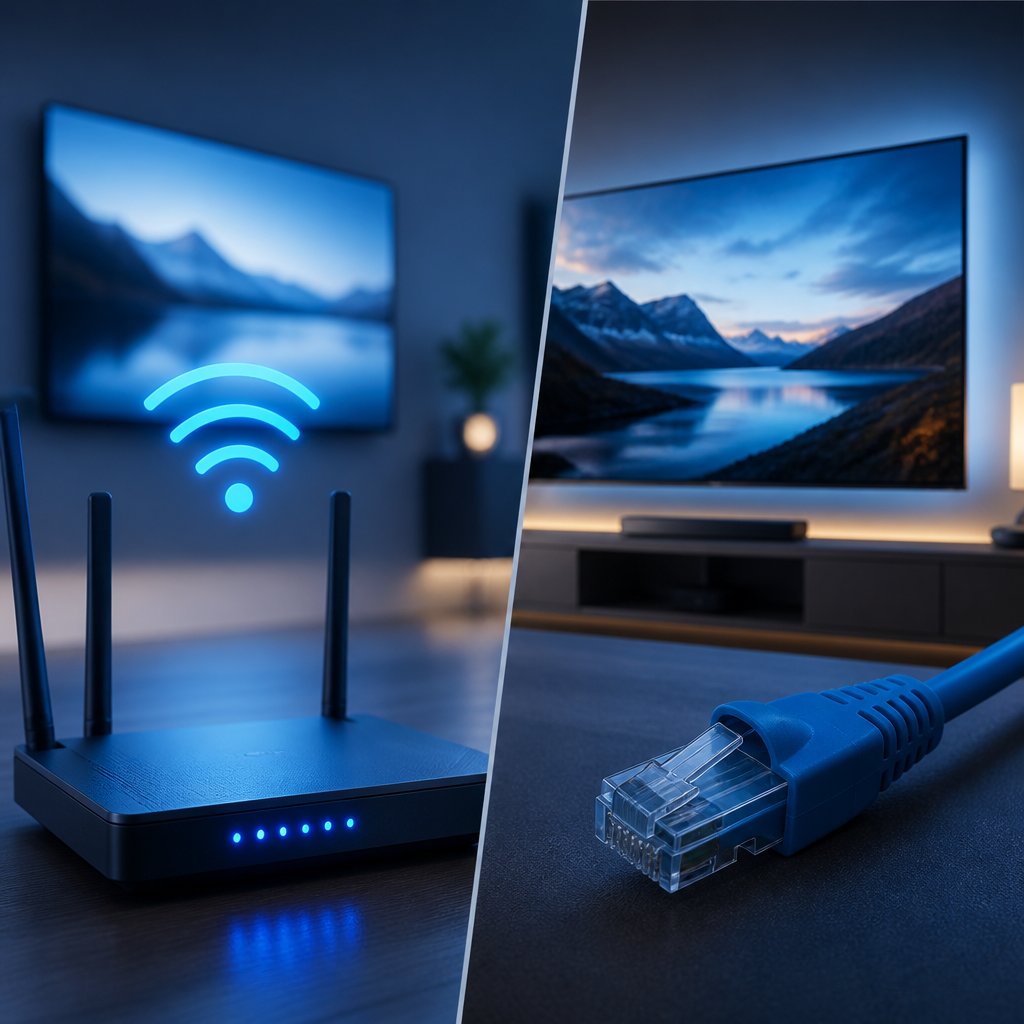
Ethernet vs WiFi streaming is one of the most common questions Canadian viewers ask when they want smoother IPTV, fewer interruptions, and a picture that does not freeze during the best part of the game.
At tvstreamcanada, a lot of viewers are not trying to become networking experts. They simply want their live TV, movies, sports, and favourite channels to play reliably after a long day.
If you want a stable TV streaming connection, the good news is that you usually do not need a complicated setup. You just need to understand when Ethernet helps, when Wi-Fi is perfectly fine, and how to avoid the small home-networking issues that cause most buffering.
This guide explains everything in plain Canadian English, with practical tips for Smart TVs, Fire TV Stick devices, IPTV boxes, and everyday home internet setups.
By the end, you will know whether to plug in a cable, improve your Wi-Fi, upgrade your router, or simply move your streaming device to a better spot.
What Is the Best Internet Connection for TV Streaming?
- Use Ethernet if your TV or streaming box is close to your router. A wired cable is usually the most stable option for IPTV, 4K movies, and live sports.
- Use 5 GHz Wi-Fi if Ethernet is not practical. It is often fast enough for HD and 4K streaming when the signal is strong.
- Avoid weak Wi-Fi signals behind walls, basements, or crowded condos. These are common causes of buffering in Canadian homes.
- Test your speed at the device, not only at the router. Your phone beside the router may show great speed while your TV upstairs struggles.
- Prioritize stability over headline speed. A steady 50 Mbps connection can stream better than an unstable 500 Mbps connection.
- Reboot your modem, router, and streaming device when problems begin. In most cases, this simple step clears temporary network issues.
The simple answer is this: Ethernet is best for maximum stability, while Wi-Fi is best for convenience. For many Canadian households, the right choice depends less on the advertised internet plan and more on the distance between the router and the device you use to stream.
If you watch CBC, CTV, Global, Citytv, TSN, Sportsnet, RDS, TVA Sports, movies, series, or IPTV channels through a streaming app or device, your connection needs to deliver video without sudden drops. Streaming is not like loading a web page. A web page can pause for a second and still feel normal. Live TV and sports need a continuous flow of data.
That is why the Ethernet vs WiFi streaming decision matters. A stronger internet plan can help, but it cannot fully fix a weak signal, an old router, or a streaming device hidden behind the TV in a dead zone.
Ethernet vs WiFi Streaming: The Quick Canadian Verdict
For most homes, Ethernet wins on reliability. Wi-Fi wins on flexibility. If you have the choice and it is easy to run a cable, Ethernet is the safest option for your main TV. If you rent, live in a condo, share a house, or cannot run cables neatly, a well-placed Wi-Fi setup can still work very well.
Think of Ethernet like a clear private road from your router to your TV. Think of Wi-Fi like a busy shared road through the air. Wi-Fi can be fast, modern, and convenient, but it can also be affected by walls, microwaves, neighbours, distance, and too many devices using the same network.
Here is the practical verdict:
- Best for main living room TV: Ethernet, if possible.
- Best for bedrooms: Strong 5 GHz Wi-Fi or a mesh system.
- Best for 4K IPTV: Ethernet or very strong Wi-Fi.
- Best for live sports: Ethernet because it reduces sudden drops.
- Best for renters: Wi-Fi, mesh, or powerline adapters if cabling is not allowed.
- Best for simple setup: Wi-Fi with smart router placement.
If your current Wi-Fi already plays everything smoothly, you do not need to change just because Ethernet is technically better. The goal is not to build the most advanced network. The goal is to enjoy TV without frustration.
On the other hand, if your stream freezes during hockey, drops quality during evening peak hours, or buffers whenever someone else in the house starts gaming or video calling, Ethernet may be the easiest improvement you can make.
Why Your TV Streaming Connection Matters So Much
Streaming television feels simple on the surface. You open an app, choose a channel or movie, and press play. Behind the scenes, your device is constantly receiving small pieces of video data. If those pieces arrive smoothly, the picture looks great. If they arrive late or unevenly, you may see buffering, pixelation, audio delays, black screens, or error messages.
Canadian households often use many connected devices at once. A typical evening might include one person watching IPTV in the living room, another streaming Netflix in a bedroom, someone playing online games, two phones scrolling social media, a laptop on a video call, and smart home devices quietly using the network in the background.
Your internet plan matters, but your home network matters just as much. The speed you pay for from your internet provider is only the speed arriving at your modem or router. What reaches your Smart TV or Fire TV Stick may be much lower.
Common home streaming problems include:
- Wi-Fi signal weakened by thick walls or floors.
- Router placed in a closet, basement, or behind furniture.
- Too many devices connected to the same Wi-Fi band.
- Older routers that cannot handle modern streaming demands.
- Interference from neighbouring networks in apartments or condos.
- Streaming devices with limited Wi-Fi antennas.
This is why someone can have a 1 Gbps fibre plan and still experience buffering on one TV. The issue is not always the internet coming into the home. It is often the path from the router to the streaming device.
Speed Is Only One Part of the Story
When people compare internet plans, they usually look at speed first. Speed is important, but it is not the whole story for streaming. You also need consistency. A connection that jumps between fast and slow every few seconds can cause more trouble than a slightly slower connection that stays steady.
For HD streaming, a stable 10 to 25 Mbps connection per stream is usually enough. For 4K, many services recommend around 25 Mbps or more per stream. IPTV and live channels can vary depending on the app, video quality, and device. If multiple people are streaming at once, you need more total bandwidth.
However, the numbers can be misleading. If your TV is getting 80 Mbps over Wi-Fi but the signal drops every few minutes, you may still buffer. If your TV gets 50 Mbps through Ethernet and never drops, it may feel much better.
In plain terms, streaming loves consistency. Ethernet is often better because it provides that consistency. Wi-Fi can provide it too, but only when the signal is clean and strong.
Stability Makes Live TV Feel Like Cable
A lot of viewers switching from traditional cable to IPTV or app-based TV want the same dependable experience: turn on the TV and watch. The stream should not feel fragile. It should not need constant troubleshooting. It should just work.
Live TV is especially sensitive because you cannot simply download the entire program in advance. Sports are even more demanding because fast motion makes quality drops more noticeable. A brief freeze during a movie is annoying. A freeze during a power play, penalty kick, Blue Jays inning, or UFC main event is much worse.
Stability affects:
- How quickly channels open.
- How often the picture freezes.
- Whether audio stays in sync.
- How steady the picture quality remains.
- Whether apps disconnect or time out.
- How smoothly your device handles busy evening hours.
Ethernet helps by removing many wireless variables. Wi-Fi can still be excellent, but it needs a good router location, a strong signal, and limited interference.
When Ethernet Is the Better Choice for Streaming
Ethernet is a physical network cable that connects your router directly to your TV, IPTV box, Android box, Apple TV, gaming console, or compatible streaming device. It is not fancy, but it is dependable. For a main TV that gets used every day, Ethernet is often the best upgrade because it is simple and affordable.
You should consider Ethernet if:
- Your router is in the same room as your TV.
- You watch a lot of live sports or 4K content.
- Your Wi-Fi speed changes a lot during the day.
- You see buffering even with a fast internet plan.
- Your streaming device supports an Ethernet port or adapter.
- You want the most cable-like IPTV experience possible.
Ethernet cables are inexpensive and come in many lengths. For most homes, a Cat 6 cable is a good choice because it supports high speeds and is widely available. You do not need to overpay for extreme cables with dramatic claims. A normal quality cable from a trusted retailer is usually enough.
The biggest advantage of Ethernet is that it reduces uncertainty. Your signal is not travelling through walls or competing with your neighbour’s router. It is not affected much by a microwave, a baby monitor, or where someone sits with a laptop. That makes it ideal for the TV you care about most.
There are a few drawbacks. Cables can look messy if they are not routed neatly. Some modern slim TVs and streaming sticks do not have built-in Ethernet ports. In those cases, you may need a compatible adapter. If your router is far away, running cable may not be convenient. Still, when it is practical, Ethernet is hard to beat.
If you are setting up IPTV on a Smart TV and want to make sure your device is ready, you may also find this IPTV Smart TV Canada checklist for 2026 helpful before you adjust your network.
When Wi-Fi Is Good Enough for TV Streaming
Wi-Fi is the most common choice because it is easy. You connect the TV to your network, enter the password, and start watching. For many Canadian homes, especially with newer routers and strong signal strength, Wi-Fi can stream beautifully.
Wi-Fi is often good enough when:
- Your router is close to the TV.
- Your TV shows a strong Wi-Fi signal.
- You use the 5 GHz band for streaming.
- You do not have many thick walls in between.
- Your router is modern and well placed.
- You mostly stream HD or light 4K content.
Modern Wi-Fi standards are much better than older ones. If your router supports Wi-Fi 5, Wi-Fi 6, or Wi-Fi 6E, you can often get excellent performance. The key is placement. A great router in a bad location can perform poorly. A modest router in a central, open location can perform surprisingly well.
In condos and apartments, Wi-Fi can be more unpredictable because many neighbouring networks are nearby. You may be competing with dozens of routers in the same building. If your stream works during the day but struggles in the evening, congestion may be part of the issue.
For Wi-Fi streaming, 5 GHz is usually better than 2.4 GHz when you are close enough to the router. It is faster and typically less crowded. The 2.4 GHz band reaches farther, but it is often slower and more affected by interference. If your TV is far from the router, 2.4 GHz may connect more easily, but it may not perform as well for higher-quality streaming.
The good news is that you do not need perfect Wi-Fi. You need reliable Wi-Fi where your streaming device actually sits. If your phone gets a great signal beside the router, that does not prove your TV does. Test from the same room, at the same time of day, and under normal household use.
Ethernet vs WiFi Streaming for 4K, Sports, and IPTV
The Ethernet vs WiFi streaming comparison becomes more important when video quality and timing matter. Not every stream has the same demands. A short YouTube clip, a drama series, a 4K movie, and a live hockey game can all behave differently on your network.
Here is a practical comparison:
| Use Case | Ethernet | Wi-Fi |
|---|---|---|
| HD movies and shows | Excellent and very stable | Usually excellent with strong signal |
| 4K streaming | Best choice for consistency | Good if 5 GHz signal is strong |
| Live sports | Best for fewer interruptions | Can work well, but signal drops are noticeable |
| IPTV channel surfing | Fast and dependable | Good when router is close |
| Bedrooms far from router | May require long cable or adapter | Convenient, but may need mesh Wi-Fi |
| Condos with interference | Avoids Wi-Fi congestion | May need channel optimization or router upgrade |
For 4K content, Ethernet is recommended when possible because 4K streams use more data and show connection problems more clearly. Picture quality may drop from sharp to soft if the connection becomes unstable. You may also see buffering at the beginning of playback or during busy evening hours.
For live sports, stability is even more important than raw speed. TSN, Sportsnet, RDS, TVA Sports, and other sports services or channels can show rapid motion, and freezes are very noticeable. A reliable wired connection helps reduce those sudden pauses that make viewers nervous during important moments.
For IPTV, Ethernet is often the most reassuring option. IPTV can involve live channels, catch-up TV, and on-demand content. Channel switching and live playback benefit from a steady connection. If you are serious about using IPTV as a cable replacement, wiring your main device can make the experience feel more polished.
That said, Wi-Fi is not automatically bad. Many viewers use Wi-Fi every day without trouble. If you have a modern router, a good signal, and a reasonably uncrowded home network, Wi-Fi can deliver excellent IPTV performance.
How to Improve Wi-Fi for Smoother Streaming
If Ethernet is not practical, improving Wi-Fi is usually the next best step. You do not always need a new internet plan. In most cases, better router placement and small settings changes make a bigger difference than people expect.
Start with the basics:
- Place the router in an open, central area.
- Keep it off the floor and away from metal objects.
- Avoid hiding it inside cabinets or behind the TV.
- Use 5 GHz Wi-Fi for nearby streaming devices.
- Restart the router every so often if performance drops.
- Disconnect old devices you no longer use.
Router location is one of the most overlooked streaming factors. Many internet installers place the modem or router wherever the cable enters the home, such as a basement, utility room, or corner office. That may be convenient for installation, but not ideal for Wi-Fi coverage.
If your main TV is on the opposite side of the house, the signal may pass through floors, walls, appliances, ducts, and furniture before reaching the device. Every barrier weakens the signal. Moving the router even a few metres can help.
For larger homes, a mesh Wi-Fi system can be a good option. Mesh systems use multiple access points to spread coverage more evenly. They are especially helpful in townhomes, split-level homes, finished basements, and houses where the router cannot be centrally located.
You can also consider a Wi-Fi extender, but be careful. Some extenders reduce speed or create awkward handoff problems. A quality mesh system is usually more reliable than a cheap extender, especially for streaming video.
If you live in a condo, try changing the Wi-Fi channel in your router settings or using an automatic channel selection feature. Too many nearby networks on the same channel can cause congestion. Many modern routers handle this automatically, but older models may need help.
Finally, update your router firmware if your provider or manufacturer makes updates available. Firmware updates can improve security, stability, and device compatibility.
Common Mistakes to Avoid
Most streaming problems are not caused by one big mistake. They are usually caused by several small issues stacking together. The good news is that these mistakes are easy to fix once you know what to look for.
Avoid these common streaming connection mistakes:
- Judging everything by internet plan speed. A fast plan does not guarantee strong Wi-Fi at the TV.
- Placing the router in a closed cabinet. Wi-Fi needs open space to perform well.
- Using 2.4 GHz when 5 GHz is available nearby. The 5 GHz band is often better for streaming.
- Ignoring old equipment. An aging router can limit a modern fibre or cable internet plan.
- Streaming on a device with weak Wi-Fi hardware. Some low-cost sticks and older TVs have limited antennas.
- Running too many background downloads. Game updates and cloud backups can affect streaming.
- Assuming all buffering is the IPTV service. Home network problems are very common.
Another common mistake is placing a streaming stick directly behind the TV and close to the wall. TVs, wall mounts, and entertainment units can block or weaken Wi-Fi signals. If your Fire TV Stick or similar device includes a short HDMI extender, use it. Moving the stick slightly away from the back of the TV can improve signal quality.
People also forget to test at the right time. If your streaming problems happen at 8 p.m., test at 8 p.m. Your network may be fine at 10 a.m. but crowded during prime time when everyone is online. Evening testing gives a more realistic picture.
Lastly, do not keep switching apps, passwords, routers, and devices all at once. Change one thing at a time. That way, you can tell what actually fixed the issue.
Smart TV, Fire TV Stick, and Router Setup Tips
Different streaming devices handle networks differently. A wired Android box may perform better than an older Smart TV on weak Wi-Fi. A newer Fire TV Stick may work beautifully if it has a strong 5 GHz connection. Your setup matters.
For Smart TVs, check whether the TV has an Ethernet port. Many do. If your router is nearby, try a cable and compare. If the TV streams more smoothly on Ethernet, you have your answer. Some Smart TVs have excellent screens but average networking hardware, so Ethernet can make them feel more responsive.
For Fire TV Stick users, Wi-Fi is common because the device is small and designed for simple setup. Use the 5 GHz network when possible. If the stick is behind the TV, try using the included HDMI extender. If you want Ethernet, Amazon and third-party manufacturers sell Ethernet adapters for some Fire TV models, but you must choose one that is compatible with your exact device.
For IPTV boxes or Android TV boxes, Ethernet is often easy because many include an Ethernet port. If you want the most stable experience, plug it in and keep Wi-Fi as a backup.
Useful setup tips include:
- Keep your streaming app updated.
- Restart the device if channels begin to lag.
- Clear app cache when storage gets crowded.
- Use the correct power adapter for streaming sticks.
- Keep the router away from cordless phones and microwaves.
- Name your 2.4 GHz and 5 GHz networks clearly if needed.
If your router combines both bands under one network name, your device may choose automatically. This can be convenient, but sometimes the TV connects to the slower band. If you suspect that is happening, separate the network names temporarily and connect the streaming device directly to 5 GHz.
For households with children, guests, gaming consoles, and smart devices, look for router settings called QoS or device priority. These features can give streaming devices a better chance when the network is busy. You do not always need them, but they can help in crowded homes.
Final Thoughts: Choose the Connection That Feels Effortless
Ethernet vs WiFi streaming does not have to be confusing. Ethernet is the best choice when you want maximum stability, especially for your main TV, 4K content, live sports, and IPTV. Wi-Fi is the best choice when you need convenience, flexibility, and a clean setup without cables. Both can work well when they are set up properly.
If your router is close to your TV, try Ethernet first. It is simple, affordable, and often solves buffering without changing your internet plan. If Ethernet is not realistic, focus on strong 5 GHz Wi-Fi, better router placement, fewer obstacles, and possibly a mesh system for larger homes.
The good news is that most streaming issues can be improved with practical steps. You do not need to know every technical detail. You just need a steady connection between your internet service, your router, and the device you use to watch TV.
For Canadian viewers who want a smoother IPTV experience with less guesswork, tvstreamcanada is here to keep things simple, friendly, and reliable. Choose the connection that fits your home, test it during real viewing hours, and enjoy your favourite channels with confidence.
FAQ
Is Ethernet always better than Wi-Fi for streaming?
Ethernet is usually better for stability, but not always necessary. If your Wi-Fi signal is strong, your router is modern, and your streaming device is nearby, Wi-Fi can work very well. Ethernet is the safer choice for main TVs, live sports, 4K streaming, and IPTV setups where you want the fewest interruptions.
How much internet speed do I need for IPTV in Canada?
For one HD stream, many viewers are comfortable with 10 to 25 Mbps at the device. For 4K, aim for at least 25 Mbps per stream, with extra room if other people are online. More important than the number is stability. A steady connection with fewer drops is better than a faster connection that fluctuates constantly.
Will Ethernet fix buffering on my Smart TV?
Ethernet can fix buffering if the problem is weak or unstable Wi-Fi. It will not fix every issue, such as an overloaded app, an outdated device, or a broader internet outage. Still, in most cases, trying Ethernet is one of the easiest ways to separate Wi-Fi problems from other streaming issues.
Is 5 GHz Wi-Fi better than 2.4 GHz for streaming?
Usually, yes. The 5 GHz band is faster and often better for streaming when your TV or device is close enough to the router. The 2.4 GHz band reaches farther but is usually slower and more crowded. If your streaming device is nearby, choose 5 GHz. If it is far away, test both and keep the one that is more stable.
Should I upgrade my router or run Ethernet first?
If your TV is close to the router, try Ethernet first because it is cheaper and simpler. If your whole home has weak Wi-Fi, many devices struggle, or your router is several years old, a router upgrade or mesh Wi-Fi system may be the better long-term solution. Start with the easiest fix, then upgrade only if needed.