
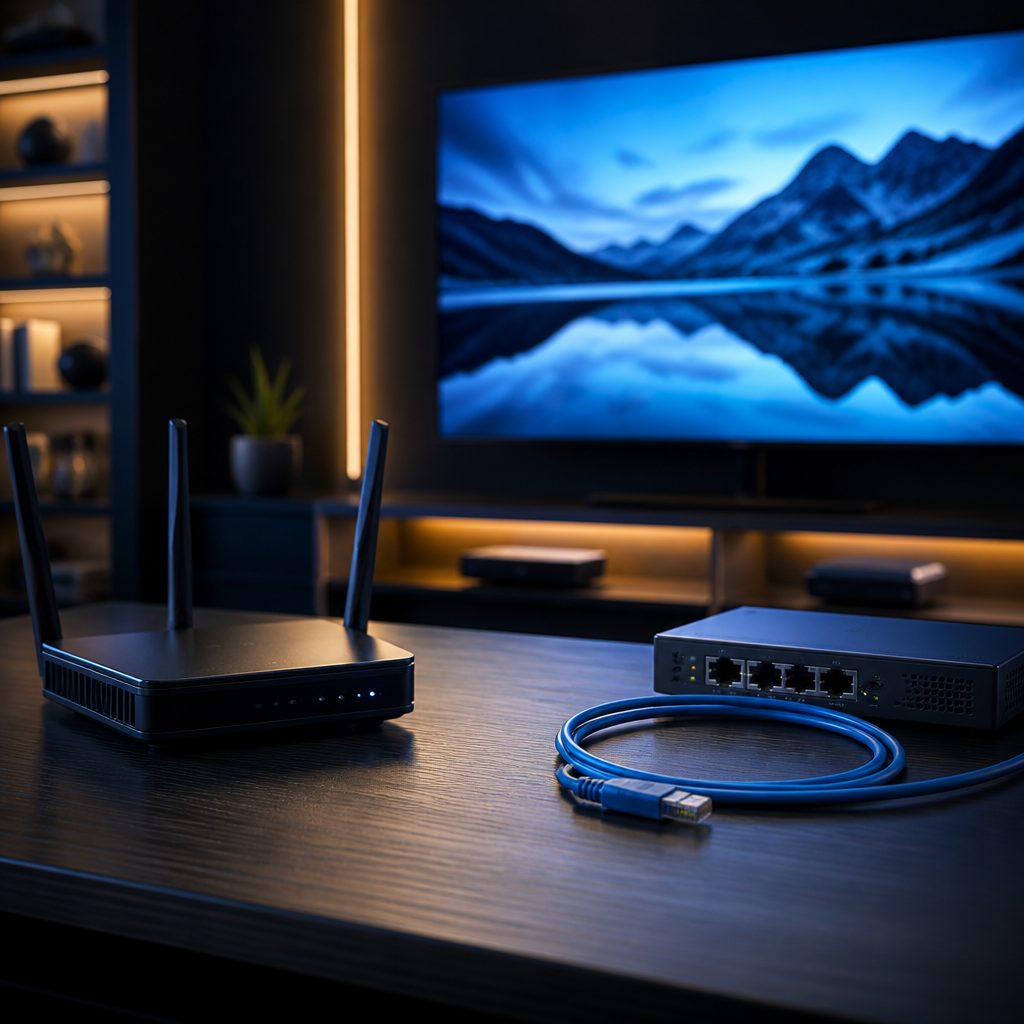
Ethernet vs WiFi streaming is one of the most practical questions for Canadian households that want smoother live TV, sports, movies, and IPTV without constant buffering.
At Televo, a lot of viewers ask whether they really need a cable plugged into the TV, or whether a strong Wi-Fi signal is enough. The good news is that in most cases, you do not need to be a networking expert to make the right choice.
If your goal is a stable TV streaming connection, the best answer depends on your home layout, your internet plan, your devices, and how many people are online at the same time.
Think of this guide as a friendly, plain-English walkthrough. We will compare Ethernet and Wi-Fi for streaming, explain what matters for IPTV, live sports, 4K video, and Smart TVs, and share easy fixes that can make your picture steadier tonight.
Whether you watch CBC, CTV, Global, Citytv, TSN, Sportsnet, RDS, TVA Sports, movies, series, or international channels through a streaming setup, the connection between your device and router can make a big difference.
Why Ethernet vs WiFi streaming matters for everyday TV
When people think about streaming quality, they often think first about internet speed. Speed matters, but it is not the whole story. The connection from your router to your TV device matters just as much, especially for live channels, sports, and IPTV streams where delays and drops are more noticeable.
Ethernet means using a physical network cable from your router or modem to your Smart TV, IPTV box, Android TV device, Apple TV, game console, or streaming stick adapter. Wi-Fi means your device connects wirelessly through your home network.
Both can work well. Ethernet is usually steadier because it is not affected as much by walls, furniture, distance, microwaves, neighbours’ networks, or crowded apartments. Wi-Fi is more convenient because there are no cables to run across the room, and it works with devices such as a Fire TV Stick, tablet, phone, or many Smart TVs without any extra setup.
For TV streaming, the biggest issue is not always raw speed. It is consistency. A stream needs a steady flow of data, like water through a hose. If the flow keeps pulsing, slowing, or dropping for a second, your app may buffer, lower the picture quality, freeze, or take longer to change channels.
Common signs your connection is not steady include:
- Live TV freezes during busy evening hours
- Sports looks blurry during fast action
- Channels take a long time to load
- 4K movies switch down to HD or SD
- Audio and video fall out of sync
- The app works better on some days than others
In Canada, many homes have a mix of devices online at the same time. Someone may be watching IPTV in the living room, another person may be gaming upstairs, someone else may be on a video call, and phones may be updating in the background. In that situation, the difference between a stable wired connection and a weak wireless one becomes much easier to notice.
Quick answer: which is better for Ethernet vs WiFi streaming?
- Use Ethernet when possible for your main TV, especially for IPTV, live sports, 4K movies, and long viewing sessions.
- Use good Wi-Fi when Ethernet is not practical, especially if your router is nearby and your signal is strong.
- Place your router in a central, open location instead of hiding it in a cabinet, basement corner, or behind the TV.
- Choose the 5 GHz or 6 GHz Wi-Fi band when your streaming device is close enough, because it is usually faster and less crowded.
- Reduce network congestion by pausing large downloads, cloud backups, and updates during important games or movie nights.
- Test with one device at a time to see whether buffering comes from your internet plan, Wi-Fi signal, device, or app.
If you want the simplest rule, here it is: Ethernet is usually best for the TV you care about most, while Wi-Fi is fine when it is strong, close, and not overloaded. Many Canadian households use both. For example, they wire the living room TV with Ethernet and use Wi-Fi for bedroom TVs, tablets, phones, or occasional viewing.
Ethernet will not magically fix every streaming problem. If your internet plan is too slow, your router is outdated, your device is underpowered, or your app needs an update, you may still see issues. But Ethernet removes one of the most common weak points: the wireless link inside the home.
For a premium IPTV experience, the goal is to reduce interruptions before they happen. A wired connection is often the easiest way to do that, particularly for people who watch live sports, news, and events where buffering is more frustrating than it would be during an on-demand show.
Ethernet vs WiFi streaming: side-by-side comparison
Here is a practical comparison for TV streaming at home. This is not about which technology is more exciting. It is about which one gives everyday viewers fewer headaches.
- Stability: Ethernet usually wins because the cable provides a direct path to the router.
- Convenience: Wi-Fi wins because there are no cables and most devices connect easily.
- Speed consistency: Ethernet usually stays more consistent over long viewing sessions.
- Setup effort: Wi-Fi is easier at first, while Ethernet may require a cable run or adapter.
- Best use: Ethernet is ideal for main TVs; Wi-Fi is great for mobile and secondary devices.
- Interference: Ethernet is far less affected by walls, neighbours, and household electronics.
For many viewers, the biggest Ethernet advantage is lower latency and fewer random dips. Latency is the time it takes for data to travel between your device and the internet. For movies, this may not sound important, but for IPTV channel changes, live TV, and sports, it can affect how responsive everything feels.
Wi-Fi, on the other hand, has improved a lot. A modern Wi-Fi 6 or Wi-Fi 6E router can be excellent when paired with a capable device and placed properly. If your TV is in the same room as the router and your internet plan is solid, you may have no noticeable problem with Wi-Fi at all.
The trouble is that Wi-Fi quality changes more easily. A door closes, a neighbour adds a new router, someone moves the modem to the basement, or several people come home and start using their devices. Suddenly, the same TV that streamed perfectly yesterday starts buffering tonight.
That is why the best internet connection for TV streaming is not always the fastest one on paper. It is the one that stays steady in real life, during prime time, in your specific home.
When Ethernet is the best connection for TV streaming
Ethernet is the stronger choice when reliability is your priority. If you have a main family TV where everyone gathers for hockey, football, movies, news, or weekend binge-watching, a wired connection is usually worth it.
Ethernet is especially helpful if:
- Your TV is close enough to the router for a cable
- You watch a lot of live IPTV channels
- You care about sports with fast motion
- You stream in 4K or higher bitrates
- Your Wi-Fi signal drops in the evening
- Your home has thick walls or multiple floors
- You live in a condo or apartment with many nearby Wi-Fi networks
Live TV streaming can be less forgiving than on-demand streaming. With on-demand movies, the app can often build a small buffer ahead of time. With live channels, there is less room to preload because the event is happening now. That is why a momentary Wi-Fi drop can be more visible during a live match on TSN, Sportsnet, RDS, or TVA Sports than during a paused movie.
Ethernet also helps older Smart TVs and streaming boxes. Some devices have weak Wi-Fi antennas, especially if they sit behind a TV, inside a cabinet, or near other electronics. A cable bypasses that weak wireless radio and gives the device a more direct connection.
There is one small catch: some Smart TVs only include 100 Mbps Ethernet ports, while their Wi-Fi may test faster on paper. For streaming, that usually does not matter. A stable 100 Mbps wired connection is more than enough for most HD and 4K streams, and it can feel better than a Wi-Fi connection that jumps between high and low speeds.
In most cases, if you can connect your primary streaming device with Ethernet without creating a safety hazard or messy room, it is the best first move.
When Wi-Fi is good enough for IPTV and live TV
Wi-Fi is not automatically bad. In fact, many Canadian viewers stream happily over Wi-Fi every day. The key is signal quality. A strong Wi-Fi connection can handle HD, 4K, IPTV, and live channels very well, especially with newer routers and devices.
Wi-Fi is usually good enough when:
- Your router is in the same room as the TV
- Your streaming device shows a strong signal
- You use a modern router from your internet provider or a quality retail model
- Your household does not overload the network during TV time
- Your TV streams smoothly at the times you normally watch
- You are using a Fire TV Stick, tablet, or device without easy Ethernet access
For some viewers, Wi-Fi is the only realistic option. Renting an apartment, living in an older house, or having the router far from the TV can make Ethernet inconvenient. The good news is that there are ways to improve Wi-Fi without drilling holes or running cable through hallways.
Try to avoid placing the router behind a TV, in a closed cabinet, beside a microwave, or on the floor. Wi-Fi signals spread better when the router is elevated, open, and central. If you have a large home, a mesh Wi-Fi system can help extend coverage to rooms where the signal is weak.
For TV streaming, the 5 GHz band is often the best choice if the device is nearby. It is typically faster and less crowded than 2.4 GHz. However, 2.4 GHz travels farther through walls, so it may be better for a distant room. Newer 6 GHz Wi-Fi can be excellent at short range, but it does not travel as far through obstacles.
If your Wi-Fi already performs well, you may not need to change anything. The practical test is simple: if your picture stays clear, channels load quickly, and buffering is rare, your Wi-Fi is doing its job.
Speed is only part of Ethernet vs WiFi streaming
A lot of viewers run a speed test and assume the result tells the whole story. Speed tests are useful, but they can be misleading for streaming. A speed test may show 300 Mbps at one moment, while your stream still buffers later because the connection is unstable, crowded, or inconsistent.
For TV streaming, four things matter more than most people realize:
- Bandwidth: how much data can move at once
- Latency: how quickly data responds
- Jitter: how much latency jumps up and down
- Packet loss: whether small pieces of data disappear
Ethernet usually improves latency, jitter, and packet loss inside the home. Wi-Fi can be fast, but it is more likely to fluctuate. That fluctuation is what causes many annoying streaming issues.
As a rough guide, one HD stream may only need several Mbps, while 4K often needs 25 Mbps or more depending on compression, quality, and the service. But you also need room for everything else happening in the home. If four people are streaming, gaming, scrolling, downloading, and video calling, the total demand rises quickly.
It is wise to leave breathing room. If your internet plan is 50 Mbps and several devices are active, you may run into limits during peak hours. If your plan is 150 Mbps, 500 Mbps, or gigabit, your internet service may be plenty fast, but weak Wi-Fi can still be the bottleneck.
This is why Ethernet vs WiFi streaming is not just a speed debate. It is a reliability debate. The best connection is the one that delivers enough speed steadily, without dips at the exact moment the game goes into overtime.
Canadian home factors that affect your streaming connection
Canadian homes vary a lot. A downtown condo in Toronto, a bungalow in Winnipeg, a townhouse in Surrey, a duplex in Montréal, and a rural home outside Halifax may all need different networking choices. The internet plan is only one part of the picture.
Here are common Canadian home factors that affect streaming:
- Older construction: thick plaster, brick, or concrete can weaken Wi-Fi.
- Basement modem placement: a router in the basement may struggle to reach upstairs TVs.
- Apartment congestion: many nearby networks can crowd the Wi-Fi channels.
- Long winter evenings: more people stream at the same time during peak hours.
- Rural internet: fixed wireless or satellite may have higher latency than fibre or cable.
- Multi-generational households: more devices can mean more network congestion.
If you are in a condo, Wi-Fi interference can be a bigger issue than distance. Your device may see dozens of networks from neighbours, and all of them compete for airspace. Ethernet can be a simple way to avoid that crowding for your main TV.
If you are in a larger detached home, coverage is usually the bigger challenge. The router may be at one end of the house while the TV is at the other. In that case, Ethernet, a mesh system, MoCA adapters over coaxial cable, or powerline adapters may help, depending on the wiring and layout.
If you use a Smart TV as your main streaming device, it is also worth checking its app performance and network options. For a broader TV setup overview, this IPTV Smart TV Canada checklist for 2026 can help you think through device readiness, app support, and viewing comfort.
The best setup is not the same for every home. The practical goal is to identify the weakest link: internet plan, router, Wi-Fi coverage, streaming device, or cable connection.
How to set up Ethernet for smoother TV streaming
- Find an available LAN port on your modem, router, or mesh node.
- Plug one end of an Ethernet cable into that port.
- Plug the other end into your Smart TV, IPTV box, Android TV device, Apple TV, game console, or Ethernet adapter.
- Open the network settings on your streaming device.
- Select wired network or Ethernet if the device asks.
- Restart the streaming app or device to refresh the connection.
- Test a live channel, sports stream, and 4K video to confirm stability.
Setting up Ethernet is usually easier than people expect. Most routers have several yellow or labelled LAN ports on the back. Most TV devices that support wired networking will detect the cable automatically. If your device does not have an Ethernet port, you may be able to use a compatible USB Ethernet adapter, depending on the model.
Choose a decent cable, but do not overthink it. For most homes, Cat 5e or Cat 6 Ethernet cable is more than enough for streaming. Cat 6 is a safe modern choice and is widely available in Canada at electronics stores, office stores, and online retailers.
Keep cables tidy and safe. Avoid running a loose cable across a walkway where someone could trip. If the router is across the room, consider cable clips, a flat Ethernet cable along the baseboard, or a short cable to a nearby mesh node with Ethernet ports.
If your TV is far from the router, you still have options:
- Use a mesh Wi-Fi node near the TV and connect Ethernet from the node to the device
- Use MoCA adapters if your home has coaxial cable outlets
- Try powerline adapters if your electrical wiring supports them well
- Ask your internet provider about moving the router to a better location
- Have a professional run Ethernet through walls if you want a clean permanent setup
A wired connection does not need to look messy. With a little planning, many households can wire the main TV neatly and keep Wi-Fi for everything else.
How to improve Wi-Fi for streaming without running cables
If Ethernet is not practical, you can still make Wi-Fi much better. Start with the easy changes before buying new equipment. Many buffering problems come from router placement, outdated settings, or too many devices competing at once.
Try these Wi-Fi improvements:
- Move the router into an open, central spot
- Raise it off the floor on a shelf or table
- Keep it away from microwaves, cordless phones, and thick metal objects
- Connect the TV to 5 GHz if it is close enough
- Restart the router once in a while to clear temporary issues
- Update your router firmware if the option is available
- Use a mesh system for larger homes or weak rooms
If your router uses one combined network name for 2.4 GHz and 5 GHz, your device may choose automatically. This can be convenient, but it is not always perfect. Some viewers prefer separate network names so they can choose the best band for the TV. For example, the living room TV may work best on 5 GHz, while a far bedroom TV may work better on 2.4 GHz.
Also think about what is happening during prime time. If someone is downloading a large game update, backing up photos to the cloud, or streaming multiple 4K videos at once, your TV may suffer. Some routers have Quality of Service, often called QoS, which lets you prioritize streaming devices. You do not need to use it, but it can help in busy households.
For Fire TV Stick users, Wi-Fi quality can depend heavily on placement. If the stick is hidden behind the television, the TV itself can block part of the signal. Using the small HDMI extender that comes with many streaming sticks can improve reception by moving the device slightly away from the TV.
In most cases, a few simple Wi-Fi changes can make streaming noticeably smoother. If nothing helps, then it may be time to consider Ethernet, mesh Wi-Fi, or a newer router.
Device tips for Smart TVs, Fire TV Stick, and IPTV boxes
Your streaming device matters. Two homes with the same internet plan can have very different results if one uses a modern streaming box and the other uses an older Smart TV with slow apps and weak Wi-Fi.
Here are device-specific tips:
- Smart TVs: restart the TV fully, update apps, and check whether wired Ethernet is available.
- Fire TV Stick: use strong Wi-Fi, consider an Ethernet adapter, and avoid hiding it tightly behind the TV.
- Android TV boxes: use Ethernet if available and keep the system updated.
- Apple TV: wired models are excellent for main TVs, while Wi-Fi models work well with strong signal.
- Game consoles: Ethernet is often ideal because consoles also download large updates.
- Older devices: slow processors can cause buffering-like symptoms even when internet is fine.
It is easy to blame the internet when the device is the real issue. If one TV buffers but another device on the same network works well, compare the devices. The problem may be a weak Wi-Fi antenna, limited memory, outdated app, or older hardware.
Restarting helps more often than people expect. Streaming devices can build up temporary glitches over time. A full restart, not just turning the TV screen off, can refresh the network connection and app performance.
Also make sure the device has enough storage. Some IPTV and streaming apps perform poorly when a device is almost full. Clearing unused apps, cached data, or old downloads may improve responsiveness.
For the main TV in the home, a dedicated streaming device connected by Ethernet can be one of the best upgrades. It can give you better app performance, a cleaner interface, faster channel changes, and a more stable network path.
IPTV, sports, and 4K: where stability matters most
Some streaming situations are more sensitive than others. Casual viewing on a phone may not reveal small connection problems. A live 4K sports stream on the big living room TV will reveal them quickly.
Stability matters most for:
- Live IPTV channels
- Hockey, soccer, football, basketball, and racing
- 4K movies and premium content
- Long evening viewing sessions
- Households with several viewers at once
- Events where you cannot simply pause and wait
Sports are especially demanding because of fast motion. When the connection weakens, the app may reduce bitrate to keep playing. That can make the ice, field, puck, ball, or crowd look smeared or blocky. The stream may not technically stop, but the viewing experience feels lower quality.
Live IPTV can also be sensitive to quick network drops. A brief Wi-Fi interruption may cause a channel to freeze, reload, or lose sync. Ethernet reduces that risk by removing wireless interference from the equation.
For 4K, bandwidth matters more. A stable 4K stream needs enough speed and enough consistency. If your internet plan is modest, or if many devices are active, 4K may struggle even on Ethernet. But if your internet plan is strong and your Wi-Fi is the weak point, Ethernet can make 4K feel much more reliable.
Canadian viewers often mix many types of content: local news, national networks, sports, kids’ shows, international programming, and movies. Televo is designed for viewers who want a dependable IPTV experience, but like any TV streaming service, it performs best when your home connection is steady.
Common Mistakes to Avoid
Small setup mistakes can create big streaming frustrations. The good news is that most are easy to fix once you know what to look for.
- Putting the router in a cabinet: this traps and weakens the Wi-Fi signal.
- Assuming high speed means high stability: a fast speed test does not guarantee smooth streaming.
- Using the farthest TV as the main IPTV device: distance can make Wi-Fi unreliable.
- Ignoring old equipment: outdated routers and devices may struggle with modern streaming.
- Letting downloads run during live sports: big updates can steal bandwidth at the worst time.
- Buying a longer internet plan before testing Wi-Fi: the problem may be inside your home network.
Another common mistake is placing a Fire TV Stick or streaming box behind the TV and assuming the signal is fine. Televisions contain metal and electronics that can interfere with Wi-Fi. Moving the device even a few inches can help.
Some viewers also confuse internet problems with app or device problems. If every app buffers on every device, your internet or router may be the issue. If only one app or one device has trouble, start there. Update it, restart it, clear cache if appropriate, and test another device.
Do not forget about cables either. A damaged Ethernet cable, loose connector, or old power adapter can create strange problems. If Ethernet is not working as expected, try another cable before assuming the setup is complicated.
Finally, avoid making too many changes at once. Change one thing, test, and then move to the next. That way, you know what actually solved the problem.
Practical recommendation: the best setup for most Canadian homes
For most Canadian households, the best setup is a hybrid approach. Use Ethernet for the main TV if you can, and use Wi-Fi for everything else. This gives you the stability where it matters most while keeping the convenience of wireless devices around the home.
A strong practical setup looks like this:
- Main living room TV or IPTV box connected by Ethernet
- Router placed centrally and out in the open
- 5 GHz Wi-Fi used for nearby TVs and streaming sticks
- 2.4 GHz Wi-Fi used for farther rooms or smart home devices
- Mesh Wi-Fi added if the home has dead zones
- Large downloads avoided during live events
If you cannot use Ethernet at all, focus on Wi-Fi quality. A modern router, good placement, and a strong signal can still provide excellent streaming. If your home is large, a mesh system is often more effective than one powerful router trying to reach every corner.
If you are deciding whether to upgrade your internet plan, test first. Connect your main TV with Ethernet temporarily if you can. If streaming improves immediately, your Wi-Fi was likely the issue. If it does not improve, then the cause may be your internet plan, router, device, or service settings.
For people who watch a lot of live TV, IPTV, sports, and 4K, Ethernet is the safest recommendation. It is not glamorous, but it works. A simple cable can reduce buffering, improve consistency, and make your TV feel more dependable.
If you prefer the cleanest room possible, consider hidden cable routes, flat Ethernet cables, mesh nodes with wired ports, or professional installation. You do not need to turn your living room into a server room to enjoy reliable streaming.
Final Thoughts
Ethernet vs WiFi streaming does not need to be confusing. Ethernet is usually the best choice for the main TV because it is steady, direct, and less affected by interference. Wi-Fi is still a great option when the signal is strong, the router is well placed, and the household network is not overloaded. In most cases, the best answer is not one or the other for every device, but the right mix for your home.
If you want smoother IPTV, better live sports nights, and fewer interruptions during movies, start by improving the connection to the TV you use most. Televo is here to make premium IPTV feel simple and enjoyable for Canadian viewers, and a stable home network helps you get the best possible experience.
FAQ
Is Ethernet always better than Wi-Fi for streaming?
In most cases, Ethernet is better for stability because it uses a direct cable connection to your router. Wi-Fi can still work very well, especially with a strong signal and modern equipment, but it is more affected by distance, walls, and interference.
How much internet speed do I need for IPTV?
It depends on stream quality and how many devices are online. HD streams often need much less than 4K streams, but the safest approach is to have extra bandwidth available. For busy homes, stability and available capacity matter as much as the advertised speed.
Will Ethernet stop all buffering?
Ethernet can reduce buffering caused by weak Wi-Fi, but it cannot fix every issue. Buffering can also come from a slow internet plan, outdated router, overloaded network, old streaming device, app problems, or temporary internet provider issues.
Is 5 GHz Wi-Fi better than 2.4 GHz for TV streaming?
Usually, 5 GHz is better when your TV or streaming device is close to the router because it is faster and often less crowded. However, 2.4 GHz reaches farther through walls, so it may be better for a distant room with a weaker signal.
Should I use Ethernet with a Fire TV Stick?
If your Fire TV Stick buffers and your Wi-Fi signal is not strong, an Ethernet adapter may help. Many viewers use Wi-Fi successfully, but a wired adapter can make the connection steadier for IPTV, live sports, and longer viewing sessions.