
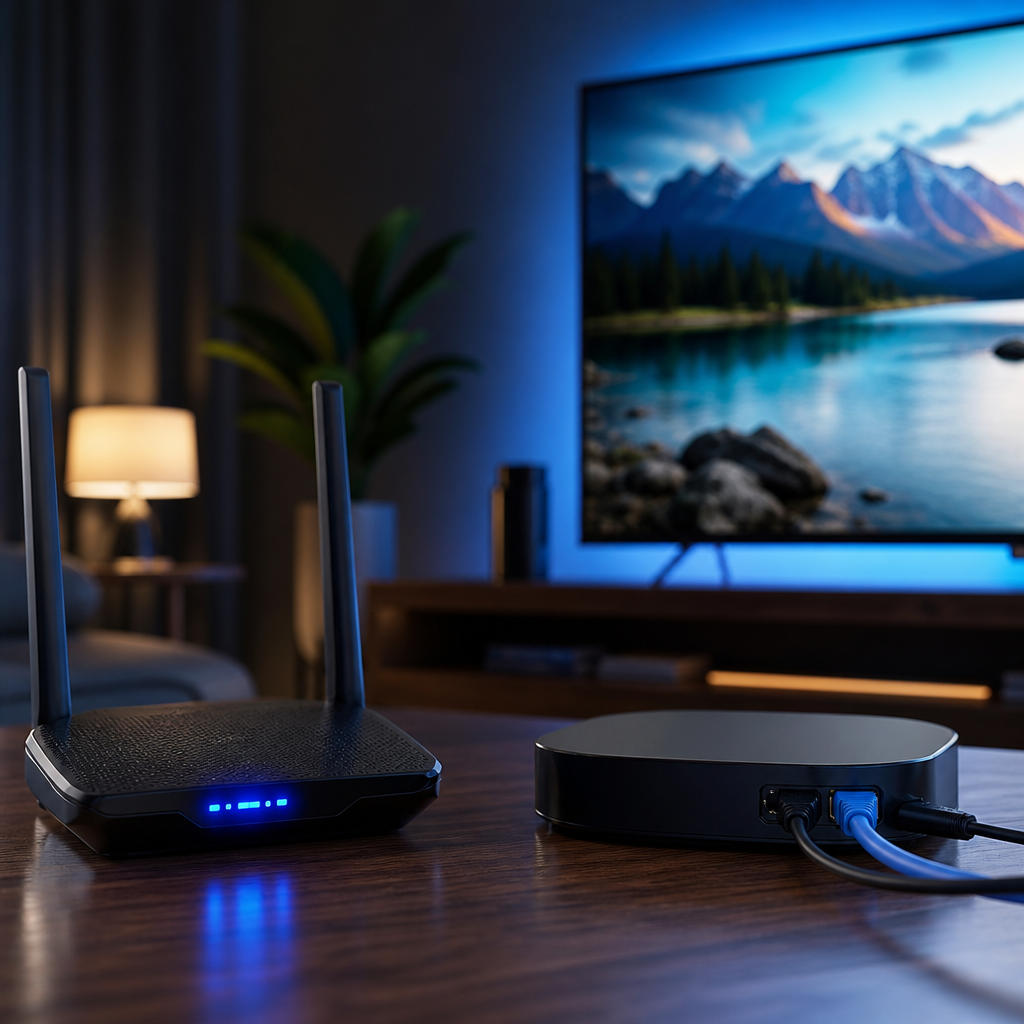
Ethernet vs WiFi streaming is one of the simplest decisions that can make your TV nights feel smoother, especially if you watch live channels, sports, movies, or IPTV through a service like tvstreamcanada.
A lot of viewers focus only on internet speed, but the good news is that stability often matters just as much as raw download numbers. A fast connection that drops for two seconds can still cause buffering during a hockey game, a movie night, or a live news broadcast.
If you want a stable TV streaming connection, it helps to understand when Wi-Fi is perfectly fine and when Ethernet is worth the small extra effort. You do not need to be technical to make a smart choice.
This guide explains Ethernet vs WiFi streaming in plain Canadian English, with practical advice for Smart TVs, Fire TV Stick, Android TV boxes, Apple TV, and everyday home internet setups.
By the end, you will know which connection to use, how to reduce buffering, what internet speed you actually need, and how to set up your home for a calmer, more reliable streaming experience.
How do you choose the best connection for TV streaming?
- Use Ethernet first if your TV box, Smart TV, or streaming device is close enough to your router.
- Use 5 GHz Wi-Fi if running a cable is not practical and your device is in the same room or nearby.
- Avoid weak 2.4 GHz Wi-Fi for 4K, live sports, or IPTV if there are many walls between the router and TV.
- Check your real speed at the TV, not just the speed your internet provider advertises.
- Reduce network crowding by pausing heavy downloads, moving devices, or upgrading your router if needed.
- Restart and test your modem, router, and streaming device before assuming the service is the problem.
In most cases, the best connection for TV streaming is Ethernet because it is more stable, less affected by walls, and less likely to suffer from household interference. Wi-Fi can still work very well, especially with a modern router, a strong signal, and a device close to the router.
The right answer depends on your home layout, the age of your router, your streaming quality, and how many people are using the internet at the same time. A condo in Toronto, a townhouse in Surrey, and a detached home in rural New Brunswick can all have very different networking realities.
Ethernet vs WiFi streaming: quick comparison
When comparing Ethernet vs WiFi streaming, think of Ethernet as the steady road and Wi-Fi as the flexible road. Ethernet uses a physical cable between your router and your TV device. Wi-Fi sends the signal through the air.
Both can deliver excellent picture quality. The difference is how consistently they do it when your household gets busy. If someone is on a video call, another person is gaming, and a phone is uploading photos, Wi-Fi can become crowded. Ethernet usually stays steady because it is not competing in the air in the same way.
- Ethernet: best for stability and live TV.
- Wi-Fi: best for convenience and easy placement.
- Ethernet: less affected by walls and appliances.
- Wi-Fi: can work well with modern routers.
- Ethernet: ideal for IPTV boxes and 4K streams.
- Wi-Fi: useful for bedrooms, rentals, and mobile devices.
If your streaming device has an Ethernet port and the router is nearby, plugging in is usually the easiest win. If your device does not have an Ethernet port, you may still have options such as an Ethernet adapter, powerline adapter, mesh Wi-Fi system, or simply improving router placement.
For Canadian viewers who watch live channels such as CBC, CTV, Global, Citytv, TSN, Sportsnet, RDS, or TVA Sports through legitimate services and apps, the steadiness of the connection can be the difference between a relaxing evening and repeated buffering. tvstreamcanada is not affiliated with those broadcasters, but the same home-networking principles apply to any TV streaming experience.
How TV streaming uses your home internet
TV streaming works by sending small pieces of video from the internet to your device. Your device stores a few seconds of video in advance, which is called buffering. When the connection is healthy, you never notice this happening. The picture keeps playing, the sound stays in sync, and the channel change feels normal.
When the connection becomes unstable, the device may run out of those video pieces. That is when you see spinning circles, frozen pictures, audio delays, or sudden drops in quality. This can happen even if your internet plan looks fast on paper.
Streaming is sensitive to several things:
- Download speed: how quickly video data arrives.
- Latency: how quickly your device gets a response.
- Jitter: how much timing varies from moment to moment.
- Packet loss: missing bits of data that need to be resent.
- Signal strength: especially important on Wi-Fi.
- Network congestion: too many devices competing at once.
For ordinary viewers, you do not need to memorize these terms. The simple version is this: streaming likes a connection that is fast enough and calm. Ethernet usually creates that calm environment. Wi-Fi can also be calm, but only when the signal is strong and the network is not overcrowded.
This is why two homes with the same internet plan can have different results. One family may have the router in the living room beside the TV and enjoy smooth streaming. Another may have the router in a basement utility room with the TV upstairs behind brick, metal, and appliances. The plan may be identical, but the experience will not be.
Why Ethernet is often best for IPTV and live TV
Ethernet is often the best connection for IPTV and live TV because it removes many of the random problems that affect Wi-Fi. A proper Ethernet cable gives your streaming device a direct line to the router. That direct line is stable, private inside your home, and not easily disrupted by neighbours or household devices.
Live TV is different from on-demand video. With a movie, an app may buffer extra video ahead of time. With a live channel, there is less room to store future content because the event is happening now. That is one reason live sports can feel more sensitive to connection issues than a regular on-demand show.
Ethernet is especially helpful for:
- Live hockey, soccer, basketball, baseball, and combat sports.
- 4K movies and high-bitrate channels.
- IPTV boxes used as the main household TV source.
- Busy homes with many phones, tablets, and laptops.
- Routers located near the main television.
- Viewers who want fewer troubleshooting headaches.
Another advantage is consistency during peak evening hours. Many Canadian households stream after work and school. If everyone in your home is online at the same time, a wired connection to your main TV can keep the biggest screen protected from Wi-Fi congestion.
Ethernet cables are also inexpensive. A Cat 5e or Cat 6 cable is enough for most homes. You do not need a fancy cable with flashy packaging. In most cases, a basic, well-made cable from a reputable store will do the job.
If your router sits on the same TV stand as your streaming device, using Wi-Fi instead of Ethernet is usually a missed opportunity. Plugging in can take less than a minute and may immediately reduce buffering, freezing, and picture-quality drops.
When Wi-Fi is good enough for streaming TV
Wi-Fi is not bad. In fact, Wi-Fi is good enough for many streaming situations. A lot of viewers use Wi-Fi every day without trouble, especially in smaller homes, condos, and apartments where the router is close to the TV.
Modern Wi-Fi can handle HD and 4K streaming when conditions are right. The key phrase is conditions are right. Wi-Fi has to pass through walls, floors, furniture, mirrors, metal, appliances, and sometimes interference from neighbouring networks. The farther the TV is from the router, the more unpredictable the connection can become.
Wi-Fi is usually fine when:
- Your TV device is in the same room as the router.
- You are using the 5 GHz or 6 GHz band.
- Your router is newer and not overloaded.
- Your home is not packed with competing networks.
- You mostly watch HD rather than constant 4K.
- Your signal strength is strong at the TV location.
Wi-Fi can also be the practical choice for renters who cannot run cables, bedrooms far from the modem, or wall-mounted TVs where visible cables would be annoying. The good news is that you can improve Wi-Fi without becoming a networking expert.
Start by placing the router in a more central, open location. Avoid hiding it in a cabinet, behind the TV, under a desk, or beside a microwave. Routers work best when they can breathe and send a signal freely. Even moving a router a few feet can improve a weak connection.
If your streaming device gives you a choice between 2.4 GHz and 5 GHz Wi-Fi, try 5 GHz first for TV streaming. It is usually faster and less crowded at short to medium distances. The 2.4 GHz band travels farther but is often slower and more congested, especially in apartments and dense neighbourhoods.
Internet speed recommendations for Canadian streaming homes
Internet speed matters, but it is only one part of Ethernet vs WiFi streaming. If the signal is unstable, a high-speed plan can still buffer. Still, it helps to know the general speed ranges that work for different picture qualities.
For one stream, these are practical starting points:
- Standard definition: about 3 to 5 Mbps.
- HD streaming: about 8 to 15 Mbps.
- Full HD live TV: about 15 to 25 Mbps.
- 4K streaming: about 25 to 50 Mbps.
- Busy family homes: 100 Mbps or more is helpful.
These numbers are not strict rules. Some apps use compression more efficiently than others, and some live streams use more bandwidth than on-demand shows. The important part is measuring speed where the streaming happens. A speed test beside the router may look excellent, while the TV upstairs may receive much less over Wi-Fi.
Canadian internet plans often advertise speeds such as 100 Mbps, 500 Mbps, 1 Gbps, or even faster. Those numbers describe the connection coming into your home under ideal conditions. They do not guarantee that every corner of your house receives the same speed on Wi-Fi.
Upload speed is less important for watching TV, but it can matter if someone else in the home is uploading large files, backing up photos, gaming, or joining video calls. If upload traffic overwhelms your connection, streaming can suffer too.
For most tvstreamcanada viewers, the goal is not to buy the most expensive plan possible. The goal is to create a stable path from the internet to the TV. Sometimes that means Ethernet. Sometimes it means a better router location. Sometimes it means upgrading an old router that cannot keep up with modern streaming habits.
Best setup by device: Smart TV, Fire TV Stick, boxes, and more
Different devices have different connection options. Some Smart TVs include an Ethernet port. Some streaming sticks rely on Wi-Fi unless you buy an adapter. Some Android TV boxes have both options built in. Before changing your internet plan, it is worth checking what your device can actually use.
For a Smart TV, look at the back or side panel for a port labelled LAN or Ethernet. If it exists and your router is nearby, connect a cable and choose wired network in the TV settings. If you are preparing a new TV purchase, a checklist can help; for example, this IPTV Smart TV Canada checklist for 2026 covers practical things Canadian viewers should consider before buying.
For a Fire TV Stick, many viewers use Wi-Fi because the device plugs directly into the HDMI port. However, Ethernet adapters are available for some models. If your Fire TV Stick is used for the main living-room TV and Wi-Fi is weak, an adapter may be worth considering.
For Android TV boxes and IPTV boxes, Ethernet is often built in. If the box sits close to the router, use the wired option. If it is far away, test Wi-Fi first and consider a mesh system or powerline adapter if performance is inconsistent.
For Apple TV, many models include Ethernet, while some lower-cost versions may be Wi-Fi only. If you have an Ethernet-capable model, plugging it in is a strong choice for 4K viewing.
For game consoles such as PlayStation or Xbox used as streaming devices, Ethernet is also helpful. Consoles often download large updates, stream video, and handle online gaming. A wired connection can improve the overall experience for both gaming and TV.
- Main living-room TV: use Ethernet if possible.
- Bedroom TV: Wi-Fi is usually acceptable if signal is strong.
- Basement TV: consider Ethernet, mesh, or powerline.
- Wall-mounted TV: plan cable routing before mounting.
- Streaming stick: consider an adapter if Wi-Fi buffers.
Common Mistakes to Avoid
Many streaming problems come from small setup mistakes. The frustrating part is that people often blame the app, the IPTV service, or the internet provider before checking the basics at home. In most cases, a few simple changes can make a noticeable difference.
Here are common mistakes to avoid:
- Testing speed only beside the router: test where the TV actually is.
- Hiding the router in a cabinet: this can weaken the Wi-Fi signal.
- Using old cables: damaged or very old Ethernet cables can cause issues.
- Ignoring router age: an outdated router may struggle with many devices.
- Connecting to weak 2.4 GHz Wi-Fi: try 5 GHz when close enough.
- Running huge downloads during live TV: this can crowd the connection.
- Never restarting equipment: modems and routers need a refresh sometimes.
Another mistake is assuming that full Wi-Fi bars always mean perfect streaming. Signal strength is useful, but it does not show everything. A network can look strong and still suffer from interference or congestion. If streaming freezes at the same time every evening, your home network may be getting crowded during peak use.
People also overlook the distance between the router and the TV. A router in the basement may not serve an upstairs bedroom well. Thick floors, ductwork, and appliances can block or reflect wireless signals. If Ethernet is impossible, a mesh Wi-Fi system can help spread a stronger signal around the home.
Finally, avoid buying random boosters without understanding the problem. Some cheap Wi-Fi extenders can cut speed and create more confusion. A good mesh system is usually better than a weak extender, especially in larger homes.
Ethernet vs WiFi streaming for sports, movies, and live channels
The type of content you watch affects how important your connection choice becomes. If you mostly watch on-demand shows, Wi-Fi may feel fine because apps can often load video ahead. If you watch live sports or live TV, stability becomes more important.
Sports can expose weak connections quickly. Fast motion, high picture quality, and live timing all put pressure on the stream. Nobody wants buffering during overtime, a penalty shot, a final lap, or the last inning. This is where Ethernet shines.
For movie nights, Ethernet is helpful for 4K and high-bitrate content. If you have a large 4K TV, a good sound system, and family gathered in the living room, a wired connection reduces the chance of interruptions. That matters when you finally sit down after a long day.
For news, local channels, and casual background viewing, Wi-Fi may be perfectly acceptable. If the picture is stable and channel changes are smooth, there is no need to complicate things. The best setup is the one that works reliably in your home.
For families, it can help to prioritize the main TV. You might wire the living-room device with Ethernet and leave bedroom devices on Wi-Fi. This gives the most important screen the most stable connection while keeping the rest of the home flexible.
- Live sports: Ethernet is strongly recommended.
- 4K movies: Ethernet or strong 5 GHz Wi-Fi.
- HD shows: Wi-Fi is often enough.
- Kids’ tablets: Wi-Fi is usually fine.
- Main IPTV box: Ethernet is the safer choice.
How to improve Wi-Fi when Ethernet is not possible
Sometimes Ethernet is not realistic. Maybe your router is across the house. Maybe you rent and cannot drill holes. Maybe the TV is wall-mounted and cable routing would be messy. The good news is that Wi-Fi can often be improved with sensible changes.
Start with router placement. Put it in an open area, ideally central to the home. Keep it away from thick walls, metal shelves, fish tanks, cordless phone bases, baby monitors, and microwaves. Raise it off the floor if possible. A router on a shelf usually performs better than one tucked behind furniture.
Next, connect your TV device to the best Wi-Fi band. Use 5 GHz for speed when the device is reasonably close. Use 2.4 GHz only when distance is long and 5 GHz is too weak. If you have Wi-Fi 6 or Wi-Fi 6E equipment, make sure your device supports it before expecting a big improvement.
You can also reduce competition. Streaming problems may appear when someone else is downloading games, syncing cloud backups, or using multiple video calls. If buffering happens only during busy household moments, the issue may be congestion rather than the streaming service.
Helpful Wi-Fi upgrades include:
- Mesh Wi-Fi: better coverage for larger homes.
- Router upgrade: useful if your router is old.
- Ethernet adapter: helpful for some streaming sticks.
- Powerline adapter: uses electrical wiring in some homes.
- MoCA adapter: uses coaxial cable where available.
Powerline adapters can be convenient, but results vary depending on your home’s electrical wiring. MoCA adapters can be excellent if your home has coaxial cable outlets in useful places. Mesh Wi-Fi is often the easiest improvement for non-technical households because it is designed to spread coverage without running long cables.
If you try one change at a time, troubleshooting becomes much easier. Move the router, test. Switch Wi-Fi bands, test. Restart devices, test. This calm approach helps you avoid spending money on upgrades you may not need.
Should you upgrade your router, internet plan, or cables?
Before upgrading anything, identify the weak point. Many people upgrade their internet plan when the real problem is Wi-Fi coverage. Others buy a new router when a simple Ethernet cable would solve the issue. The smartest upgrade is the one that fixes the actual bottleneck.
Consider upgrading your router if it is more than five years old, struggles when many devices are connected, lacks 5 GHz Wi-Fi, or needs frequent restarts. Older routers may technically still work but perform poorly with modern streaming habits.
Consider upgrading your internet plan if multiple people stream in 4K, game online, work from home, and download large files at the same time. A small household may be comfortable with a modest plan, while a busy family may benefit from higher speeds.
Consider upgrading cables if your Ethernet cable is damaged, very old, too tightly bent, or unreliable. Cat 5e and Cat 6 are both suitable for most home streaming. You do not need premium luxury cables for normal TV use.
Here is a practical order of operations:
- Restart your modem, router, and streaming device.
- Test streaming with Ethernet if possible.
- Run a speed test near the TV location.
- Improve router placement and Wi-Fi band selection.
- Check whether other devices are crowding the network.
- Upgrade equipment only after testing the basics.
For most Canadian homes, the biggest improvement comes from either wiring the main TV with Ethernet or improving Wi-Fi coverage with better placement or mesh. A faster internet plan can help, but it will not fix a weak signal in the far corner of the house.
Final Thoughts
Ethernet vs WiFi streaming does not have to be complicated. If you can connect your main TV device with Ethernet, that is usually the most reliable choice for IPTV, live sports, 4K movies, and busy family evenings. If Ethernet is not practical, strong 5 GHz Wi-Fi, good router placement, and a modern mesh system can still deliver a very enjoyable experience.
The good news is that most buffering problems can be improved with simple, practical steps. Test at the TV, reduce congestion, avoid hiding the router, and use a wired connection where it makes sense. tvstreamcanada is built for viewers who want a smoother, more flexible way to watch TV in Canada, and pairing it with a stable home connection helps you get the best possible experience.
FAQ
Is Ethernet always better than Wi-Fi for streaming?
Ethernet is usually better for stability, especially for live TV, IPTV, and 4K streaming. Wi-Fi can still work very well if the signal is strong, the router is modern, and the TV device is not too far away.
How fast should my internet be for IPTV in Canada?
For one HD stream, aim for at least 15 to 25 Mbps at the TV device. For 4K, 25 to 50 Mbps is a safer range. Busy households should consider 100 Mbps or more, but stability matters as much as speed.
Can I use Ethernet with a Fire TV Stick?
Yes, many Fire TV Stick models can use Ethernet with a compatible adapter. If your Fire TV Stick buffers on Wi-Fi and it is near your router, an Ethernet adapter can be a simple and effective upgrade.
Why does my streaming buffer even though I have fast internet?
Your internet plan may be fast, but the signal at your TV may be weak or unstable. Buffering can come from poor Wi-Fi placement, network congestion, old routers, damaged cables, or too many devices using the connection at once.
Should I get mesh Wi-Fi or run an Ethernet cable?
If your main TV is close to the router, run Ethernet. It is usually cheaper and more stable. If your home has several weak Wi-Fi areas and running cable is not practical, a good mesh Wi-Fi system may be the better choice.